Set a baseline before changing materials
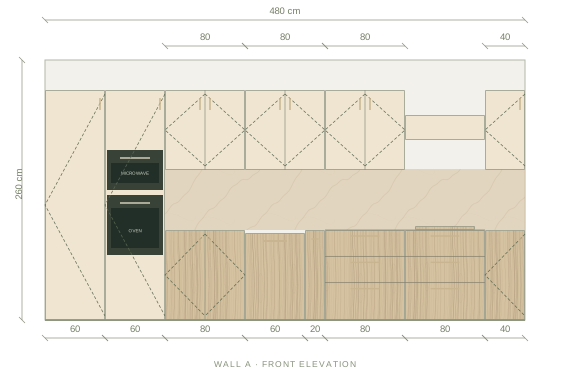
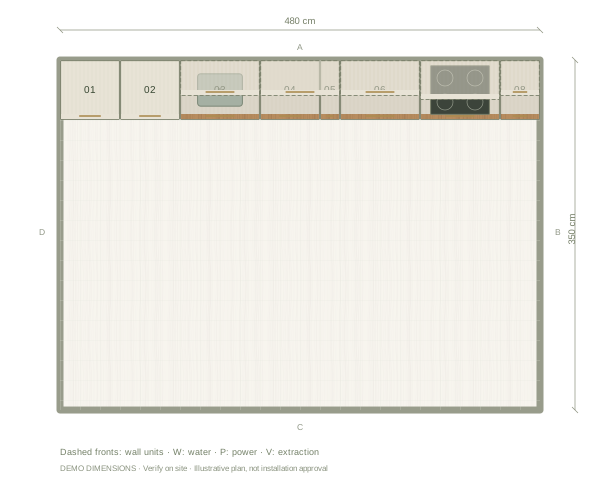
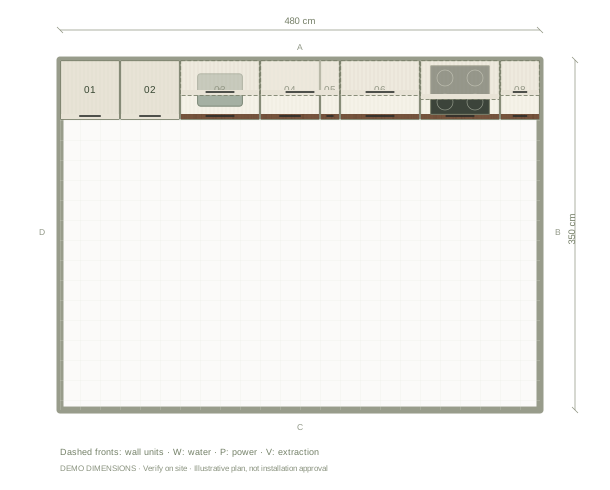
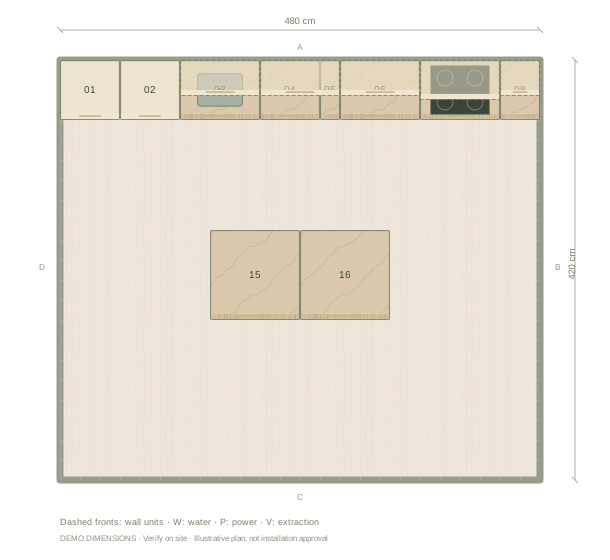
Open the example below, enter your room dimensions and choose a starting palette. Decide which element you intend to keep, such as an existing oak cabinet finish or a floor. Review the whole kitchen in 3D and one wall elevation. Use those same views for every comparison so that changes in cabinet position or camera angle do not distract from the materials.
Change one finish at a time
Start with the upper and lower cabinet fronts, then compare the worktop, backsplash, handles and wall. Apply a finish to the whole kitchen when you want a consistent run, or select a cabinet to try a separate front. Inspect the material boundary at tall units and corners. A finish that works on one small door can have a different effect across a full wall.
Keep a record of the alternatives
Save your project and export a basic PNG image of each option. Name the files with the front, timber and worktop choices so you can compare the same view later. Basic images are free; high-resolution photoreal images require Premium exports. A shared link is a snapshot, so update it if you want someone to review a later material choice.
Separate appearance from product performance
Kitchform materials are illustrations. A visual label such as marble or quartz does not confirm a particular product, thickness, edge treatment, stain resistance or heat tolerance. Ask suppliers for samples, product references and care instructions. Compare the shortlisted samples in the room, record the chosen references and have fabrication and installation details checked before ordering.
Questions before you start
Can I use the render as a colour reference when ordering?
Use physical supplier samples for the final colour and texture choice. A screen or render is a design reference and can differ from the delivered finish.
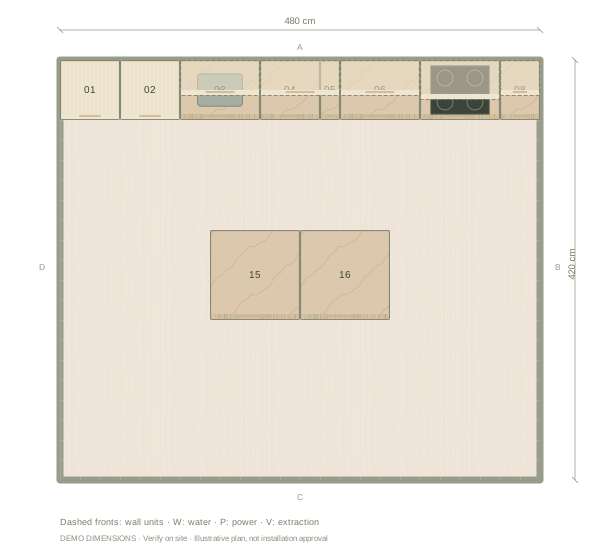
Should I change the layout while comparing colours?
Keep the layout fixed for the first comparison. Once you have a shortlist of finishes, review the chosen combination against any later layout changes.