A practical guide
Check whether the design remains editable
A picture-only workflow can show a style without giving you a cabinet plan. Look for editable room dimensions, cabinet widths and depths, appliance positions, and openings. You should be able to change one item and generate a new picture from the same design. Kitchform combines a room plan, elevations and 3D views with Render Studio.
Keep control of the camera
Check for more than a single automatic angle. An overview is useful for the room, while a front view can explain a cabinet run. A saved camera makes two finish options easier to compare because the viewpoint stays fixed. Kitchform offers room, front and detail views, plus cameras placed in the plan.
Look beyond the colour swatches
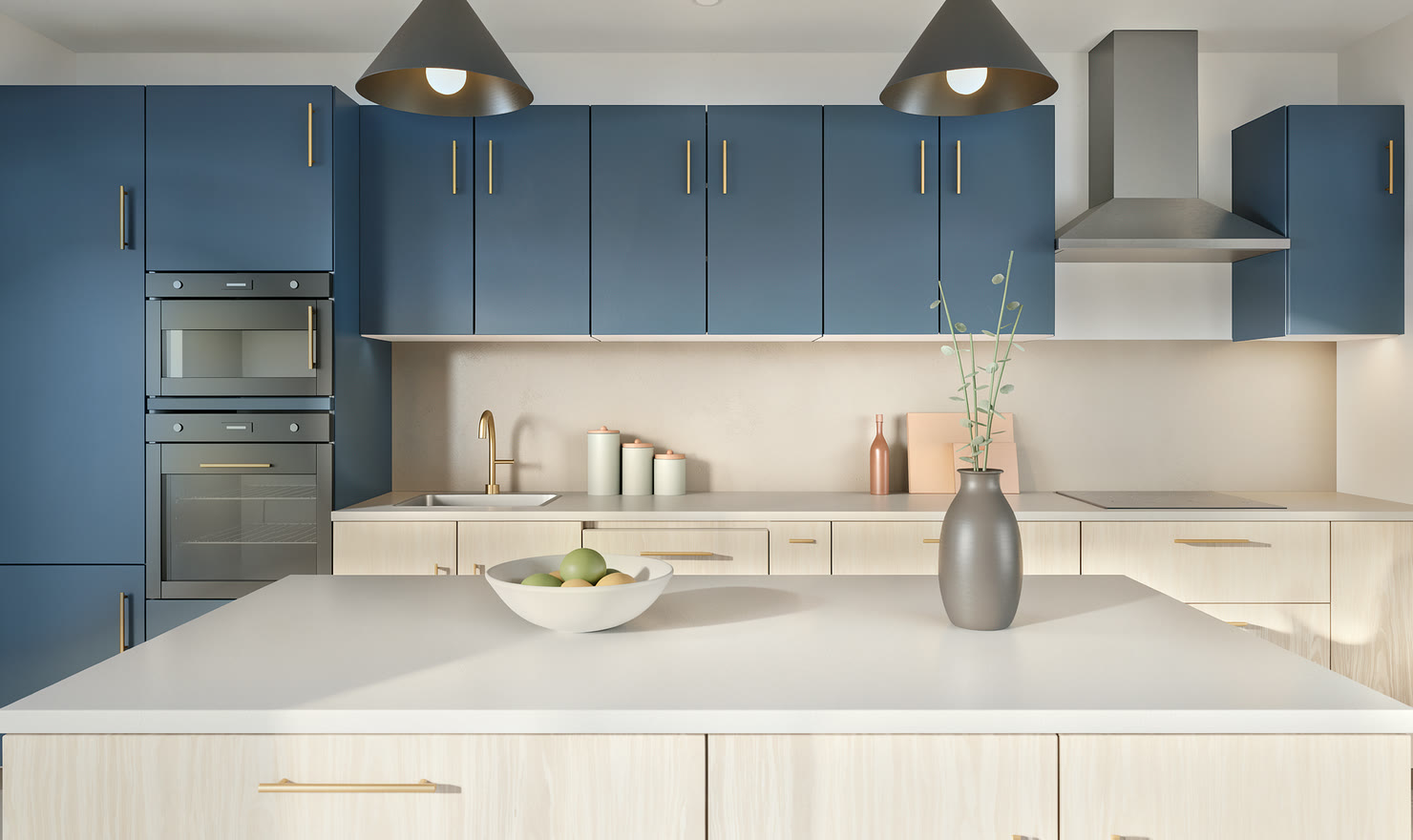
Cabinet colour alone does not establish a convincing material. Examine grain scale, stone patterns, roughness, edge highlights and contact shadows in the actual output. Use a finished example to judge the result, then test the software with your own layout. A render supports a finish discussion; it does not replace a physical sample.
Know which computer performs the final render
An interactive preview and a final photo have different workloads. Kitchform uses the browser for editing and previewing, while High renders run on the studio GPU. The account retains the job when you close the tab. A recent browser is still needed for the interactive editor and preview.
Check the first trial and the long-term output
Try a complete workflow: open a kitchen, select a view, start a render and download it. Kitchform includes one free first High render per account, without payment details. A kitchen made Premium with a credit includes up to 20 High photos. Check your account allowance before starting another job. Downloaded images are yours to keep; server copies remain available for 7 days.