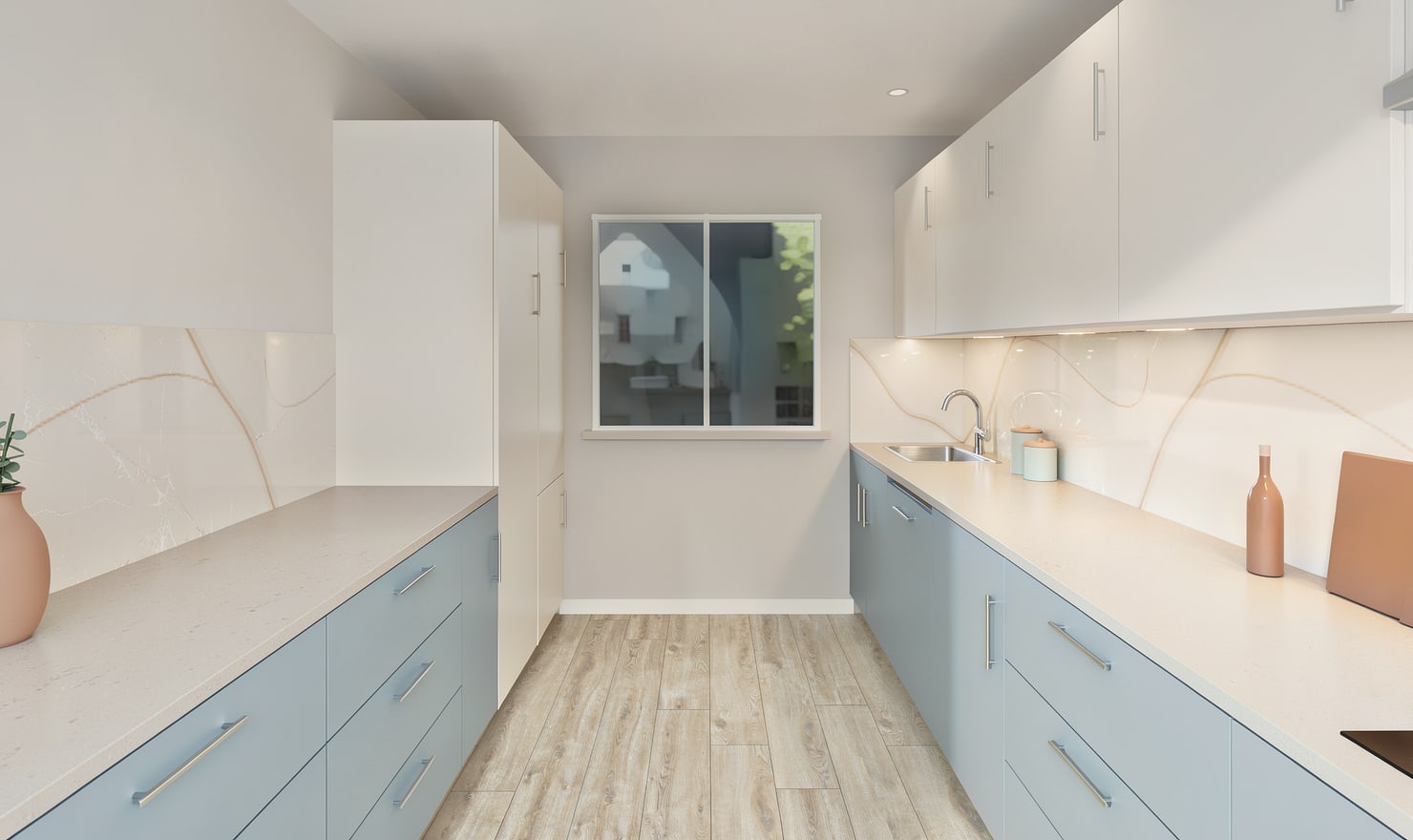
Use an AI kitchen remodel visualizer to compare options
A remodel involves several decisions: the arrangement, the cabinet fronts, the worktop and the lighting. Use an editable model to compare those choices while keeping track of what changed between versions.
Rendered Kitchform design. Photo Build drafts need separate review and measurement.
A practical workflow
01
Start with a reviewed baseline
Build manually or review a Photo Build draft of the existing kitchen. Record which services, appliances and floor finishes you intend to keep before creating alternatives.
02
Change one decision at a time
Compare cabinet colour first, then worktop and backsplash. If you also move an island, save that as a separate layout so a material preference does not hide a circulation problem.
03
Make comparable pictures
Use the same camera and lighting mood for each saved option. Review the plan alongside the render and list the actual products that still need to be selected.
Choose the right starting point
Manual kitchen planning and browser-made Free photos are free. Photo Build requires sign-in and an available allowance or paid credit. The upload dialog shows any active promotional offer and its end date.
During Photo Build week, a qualifying promotional build includes an editable draft and one High render of that kitchen. Drawing exports and additional High photos are paid separately. A paid credit makes one kitchen Premium; see current pack prices and allowances.
Questions about this workflow
Does the visualizer calculate a renovation quote?
The model helps you plan and present a design. A render is not a contractor quote or a verified list of site work.
What can I do next in Kitchform?
Open a kitchen project, review the layout and save a camera view. Compare the result with the plan and check the selected kitchen’s access before making a Premium High photo.