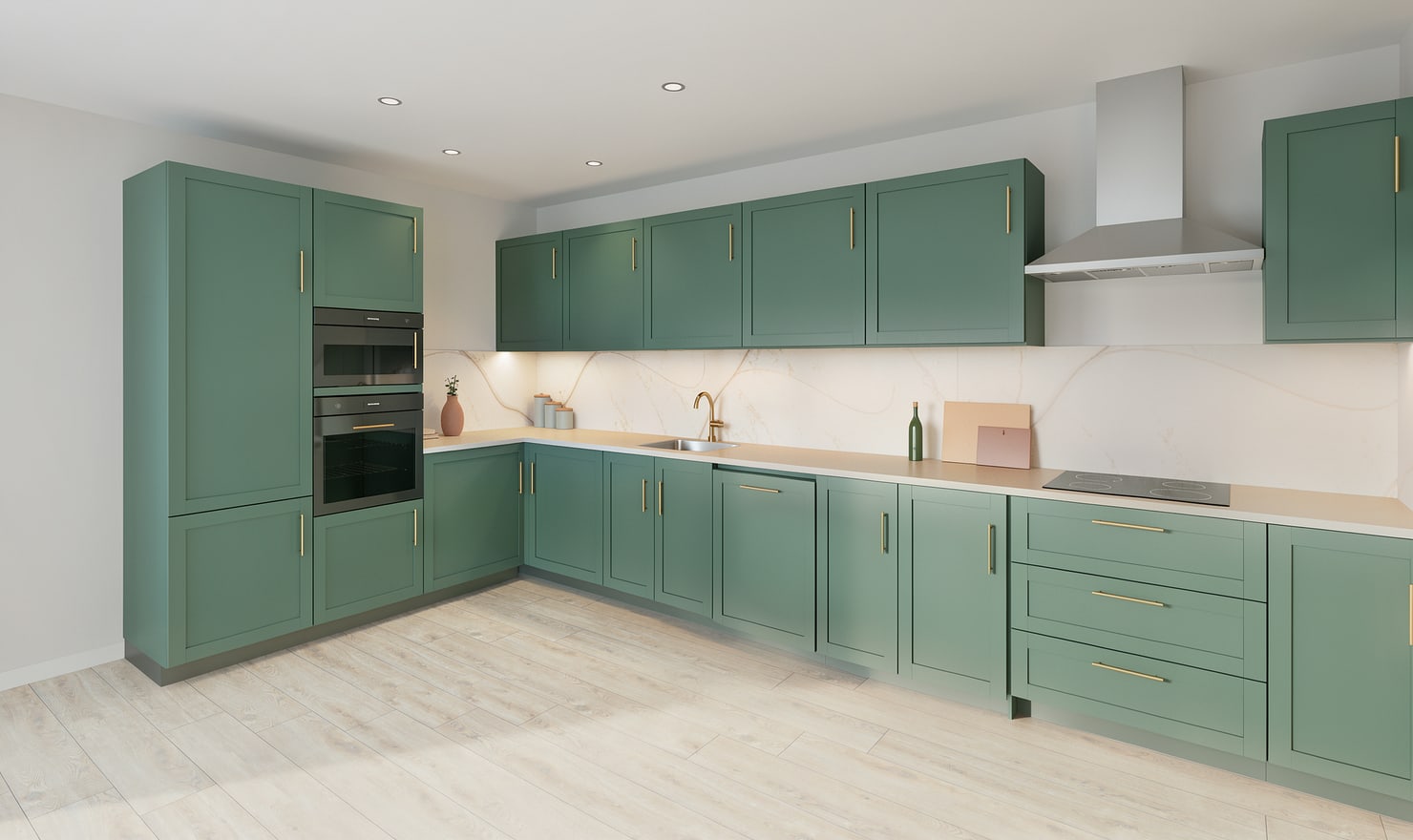
A kitchen render is most useful when it answers a specific question. Prepare a short list of choices before making pictures so you can compare the design rather than simply collecting attractive images.
Rendered Kitchform design. Photo Build drafts need separate review and measurement.
A practical workflow
01
List the open decisions
Write down the layout, front colour, worktop or backsplash choices you still need to make. Mark fixed items such as a retained floor or an appliance you already own.
02
Compare controlled alternatives
Keep the same room, camera and lighting for a material comparison. Make a separate layout version when you move cabinets so you can explain the practical consequences.
03
Bring the model to the discussion
Share the picture with the plan and a written list of remaining checks. Ask the supplier to confirm products, measurements and installation details rather than treating the picture as a specification.
Choose the right starting point
Manual kitchen planning and browser-made Free photos are free. Photo Build requires sign-in and an available allowance or paid credit. The upload dialog shows any active promotional offer and its end date.
During Photo Build week, a qualifying promotional build includes an editable draft and one High render of that kitchen. Drawing exports and additional High photos are paid separately. A paid credit makes one kitchen Premium; see current pack prices and allowances.
Questions about this workflow
Should I choose cabinets from a render alone?
Use the render to compare appearance. Confirm the real cabinet system, finishes and installation requirements with your supplier.
What can I do next in Kitchform?
Open a kitchen project, review the layout and save a camera view. Compare the result with the plan and check the selected kitchen’s access before making a Premium High photo.