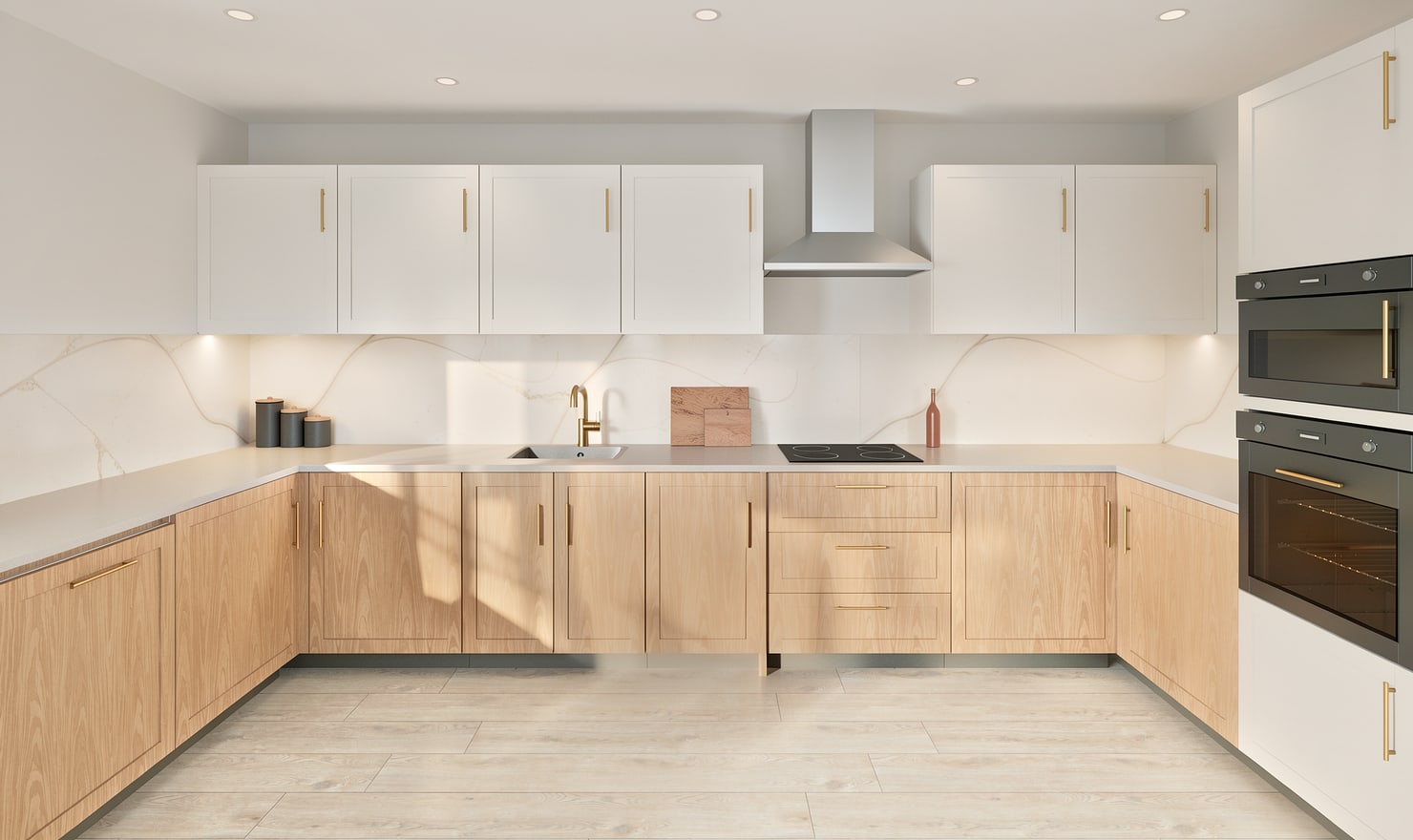
A kitchen photograph can help identify visible cabinet runs, but it cannot establish a measured floor plan. Use Photo Build to start a draft, then replace estimated dimensions with your room measurements.
Rendered Kitchform design. Photo Build drafts need separate review and measurement.
A practical workflow
01
Record wall lengths separately
Measure each wall and note doors, windows and service points from a fixed corner. A photo may hide an opening or distort its apparent width, especially near the image edges.
02
Compare the draft plan
After reviewing the photo analysis, open the top-down plan. Check which wall each cabinet belongs to and whether a corner has been counted twice. Remove anything the camera made ambiguous.
03
Correct dimensions before exporting
Set the actual room dimensions and revise cabinet sizes. Check the elevation as well as the plan: two cabinets can fit in plan while their heights clash with a window or extractor.
Choose the right starting point
Manual kitchen planning and browser-made Free photos are free. Photo Build requires sign-in and an available allowance or paid credit. The upload dialog shows any active promotional offer and its end date.
During Photo Build week, a qualifying promotional build includes an editable draft and one High render of that kitchen. Drawing exports and additional High photos are paid separately. A paid credit makes one kitchen Premium; see current pack prices and allowances.
Questions about this workflow
Can AI recover accurate measurements from one kitchen photo?
A single ordinary photo does not establish exact dimensions. Use the output as an editable starting point and verify measurements on site.
What can I do next in Kitchform?
Open Photo Build to check your account allowance, upload supported kitchen photos and review the suggested draft. Enter measured room dimensions before relying on the layout.