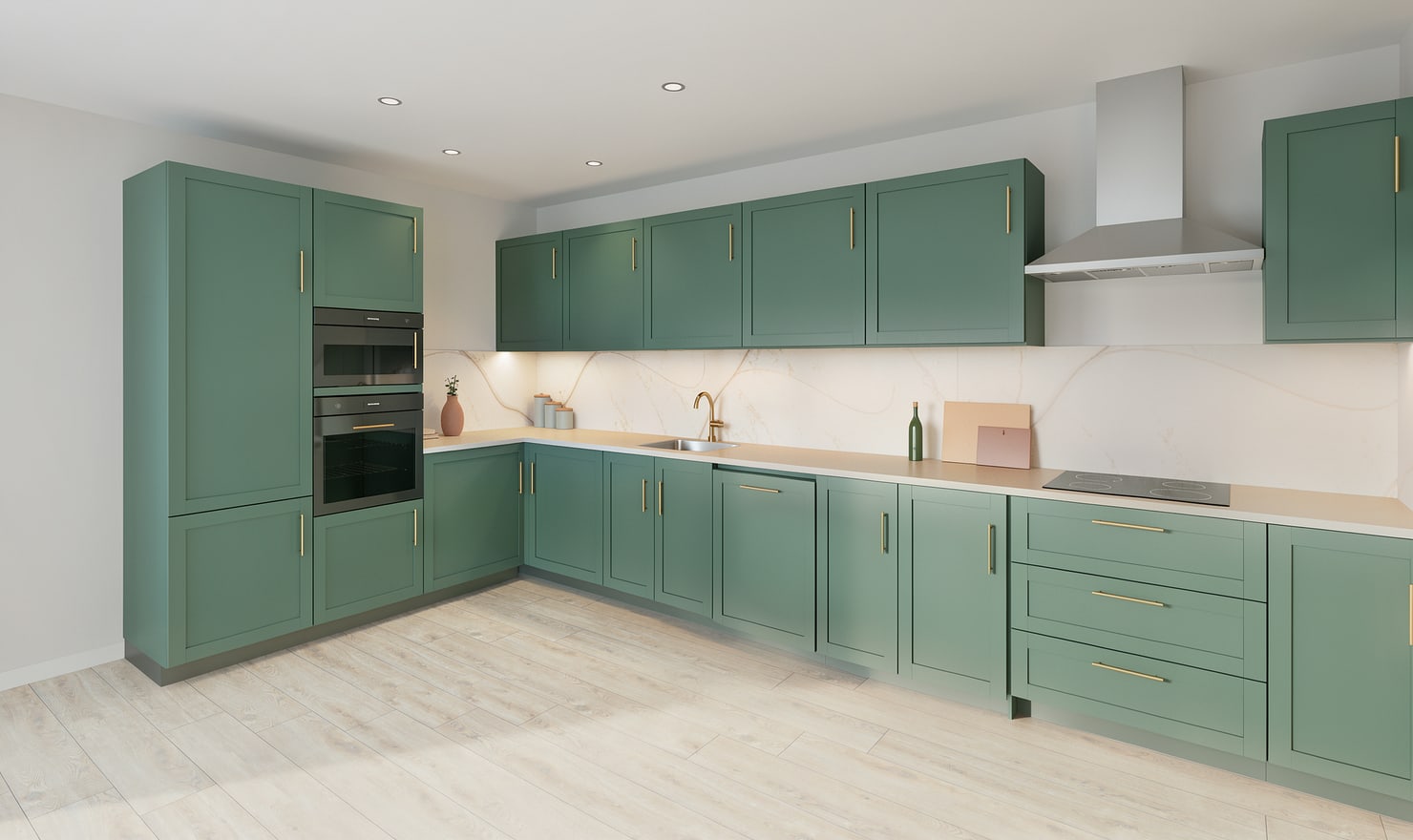
Cabinet colour reads differently across a whole run than on a small swatch. Compare it with the floor, worktop and surrounding walls in the same model before ordering samples.
Rendered Kitchform design. Photo Build drafts need separate review and measurement.
A practical workflow
01
Keep the layout fixed
Open a reviewed project and choose one camera showing both base and wall cabinets. Keep the room and lighting unchanged while you compare cabinet colours.
02
Compare a small shortlist
Try a light neutral, a mid-tone and a darker option on the same fronts. Watch the contrast with tall cabinets and appliances rather than judging a single door in isolation.
03
Verify with physical samples
Review the colour in the editor and in a render, then request real samples. Screen settings and digital materials cannot guarantee how a painted or laminated door will look in your kitchen.
Choose the right starting point
Manual kitchen planning and browser-made Free photos are free. Photo Build requires sign-in and an available allowance or paid credit. The upload dialog shows any active promotional offer and its end date.
During Photo Build week, a qualifying promotional build includes an editable draft and one High render of that kitchen. Drawing exports and additional High photos are paid separately. A paid credit makes one kitchen Premium; see current pack prices and allowances.
Questions about this workflow
Will the render match a paint colour exactly?
No. Rendering, screen settings and real lighting affect colour appearance. Use physical supplier samples for the final choice.
What can I do next in Kitchform?
Open a kitchen project, review the layout and save a camera view. Compare the result with the plan and check the selected kitchen’s access before making a Premium High photo.