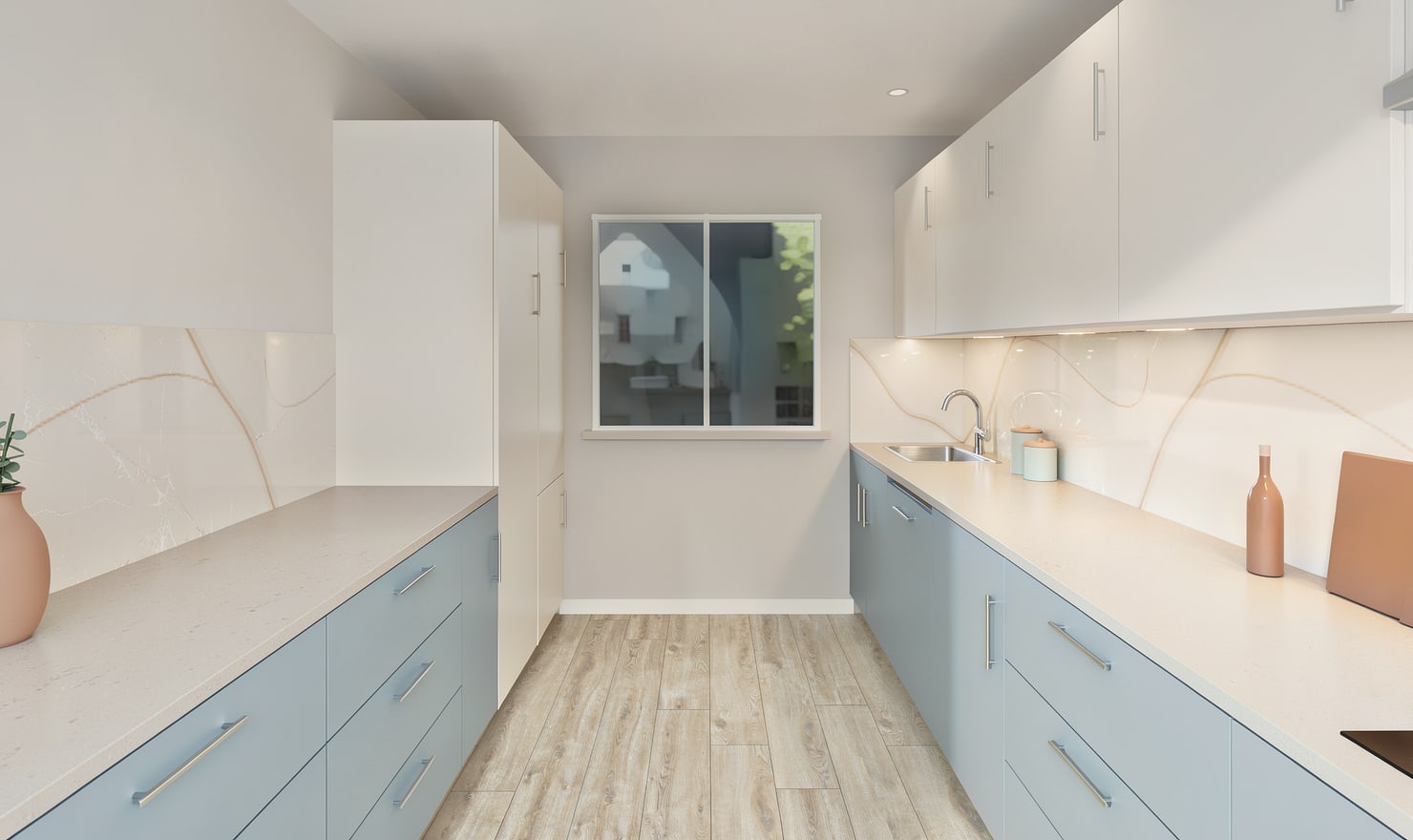
The backsplash connects the worktop and wall cabinets. Review its height, colour and joint pattern in the full kitchen, especially where the cabinet run meets a window or extractor.
Rendered Kitchform design. Photo Build drafts need separate review and measurement.
A practical workflow
01
Define the covered area
Set the backsplash zone to match the intended wall coverage. Compare the space below wall cabinets with the area around the hob and window rather than extending a texture across every wall.
02
Choose one coherent tile direction
Compare a small tile format with a longer or larger format. Inspect the scale from a normal room view and decide whether the joints support or compete with the cabinet fronts.
03
Check practical installation details
Confirm tile dimensions, grout, trims, sockets and heat suitability with the selected product supplier. The preview helps compare appearance but cannot determine a site-specific fixing specification.
Choose the right starting point
Manual kitchen planning and browser-made Free photos are free. Photo Build requires sign-in and an available allowance or paid credit. The upload dialog shows any active promotional offer and its end date.
During Photo Build week, a qualifying promotional build includes an editable draft and one High render of that kitchen. Drawing exports and additional High photos are paid separately. A paid credit makes one kitchen Premium; see current pack prices and allowances.
Questions about this workflow
Does a tile preview include a verified tile quantity?
No. Measure the actual covered surfaces and account for cuts, waste, pattern and product packaging with your installer.
What can I do next in Kitchform?
Open a kitchen project, review the layout and save a camera view. Compare the result with the plan and check the selected kitchen’s access before making a Premium High photo.