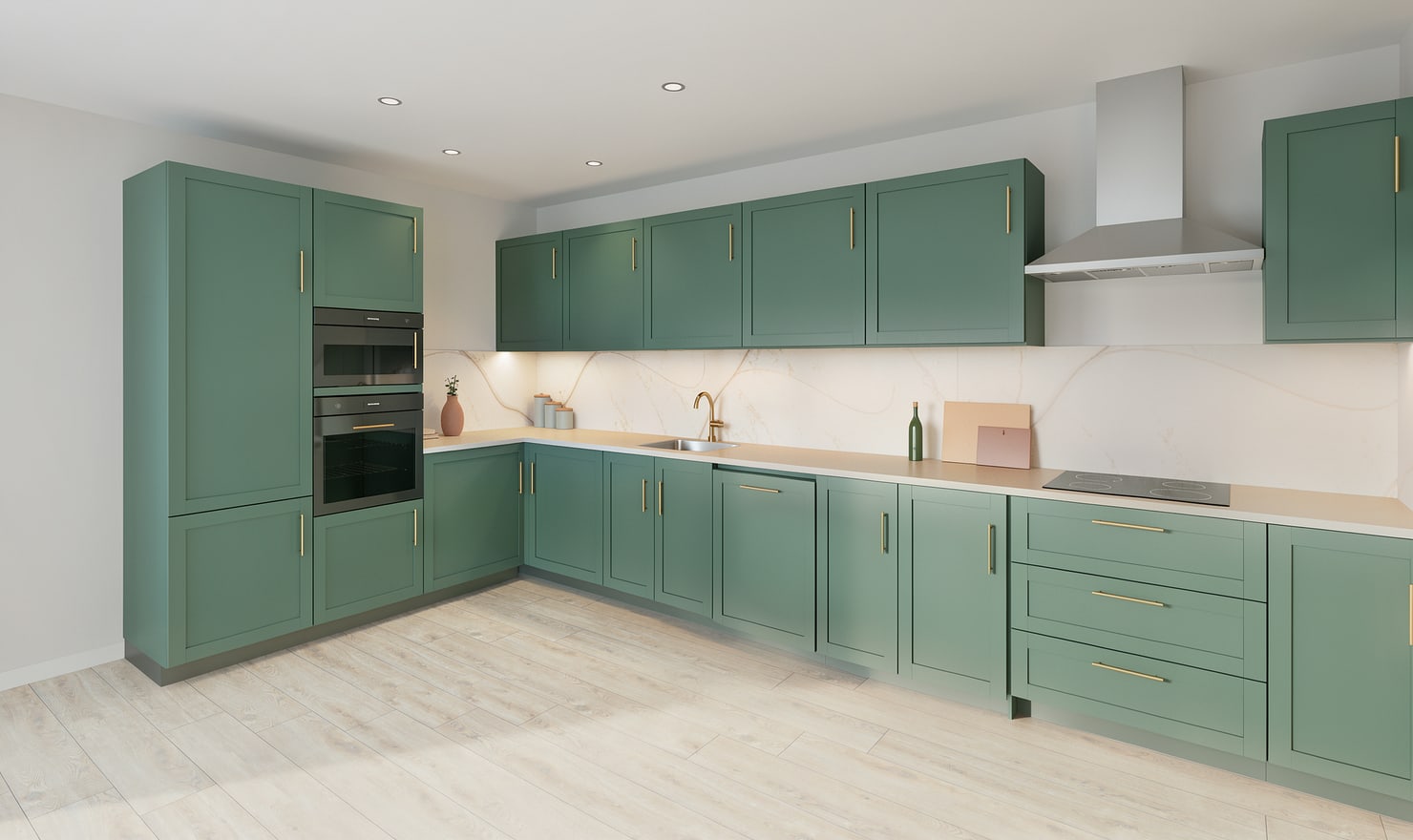
Clear, connected views make it easier to review a kitchen draft. Aim to show the cabinet arrangement, rather than collecting close-up details that hide how the room fits together.
Rendered Kitchform design. Photo Build drafts need separate review and measurement.
A practical workflow
01
Take a wide view
Step back far enough to include cabinet fronts, the floor and the top of the run. Keep the phone level and avoid a panorama that bends straight cabinet edges. Use sharp images in good light.
02
Add a useful second angle
Show the return wall, corner or island from another position. Keep part of the first view visible so you can recognise the same units when checking the analysis. Up to three photos cover one kitchen build.
03
Check the files before analysis
Use JPEG, PNG or WebP files within the upload limits shown in Photo Build. Avoid screenshot collages, heavy filters and views dominated by a window. Remove people or private information from the frame.
Choose the right starting point
Manual kitchen planning and browser-made Free photos are free. Photo Build requires sign-in and an available allowance or paid credit. The upload dialog shows any active promotional offer and its end date.
During Photo Build week, a qualifying promotional build includes an editable draft and one High render of that kitchen. Drawing exports and additional High photos are paid separately. A paid credit makes one kitchen Premium; see current pack prices and allowances.
Questions about this workflow
Should I upload close-ups of every cabinet?
Start with wide views that explain the layout. Close-ups can hide the relationship between units and should not replace a view of the complete run.
What can I do next in Kitchform?
Open Photo Build to check your account allowance, upload supported kitchen photos and review the suggested draft. Enter measured room dimensions before relying on the layout.