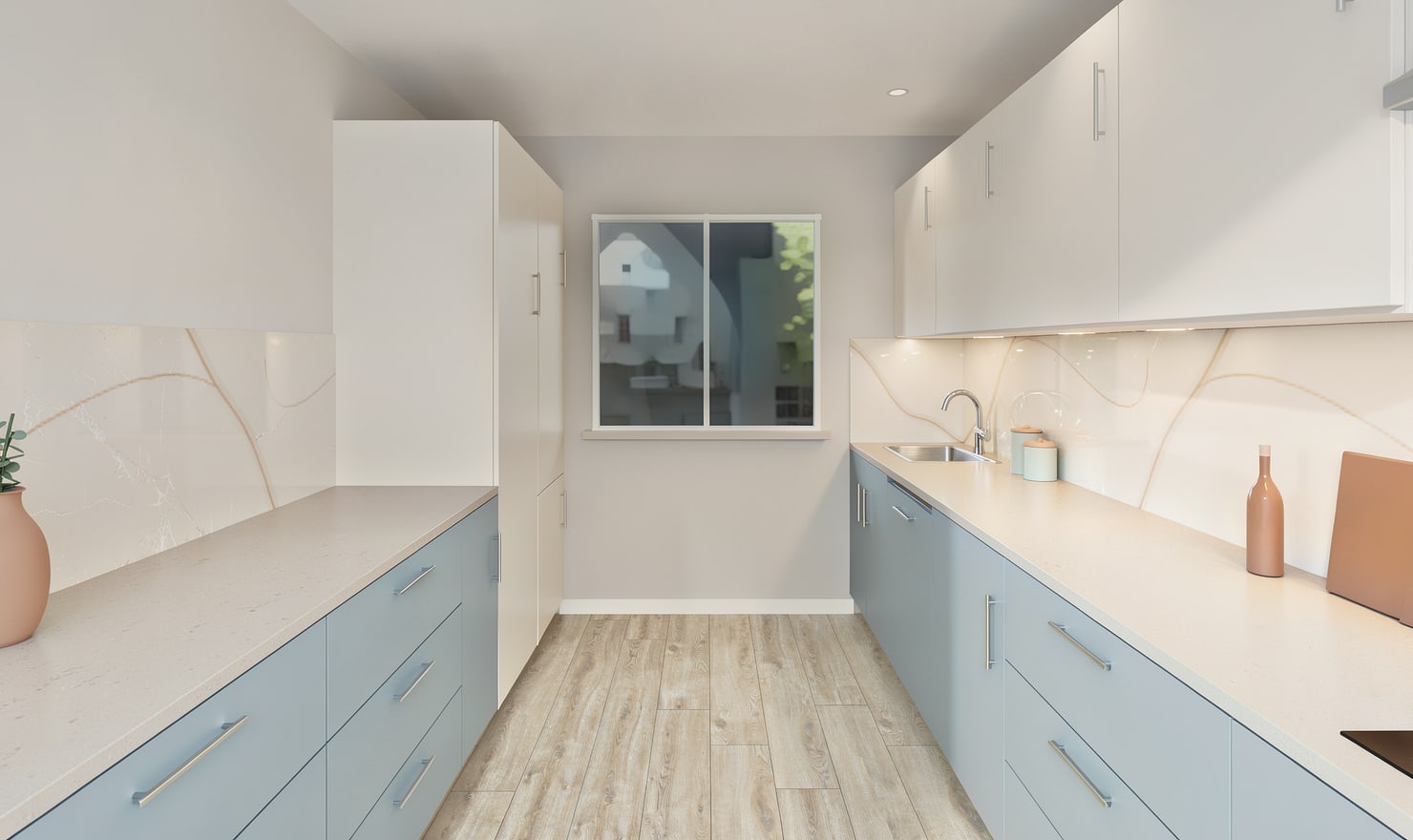
A render is easier to discuss when the recipient knows which project, view and decisions it represents. Share a focused set of images with the planning information needed to interpret them.
Rendered Kitchform design. Photo Build drafts need separate review and measurement.
A practical workflow
01
Choose the current design
Save the preferred project and check the camera views. Remove superseded pictures from the presentation set so recipients do not compare an old cabinet arrangement with a new material option.
02
Explain the decision
Label the finish option and name the features that need feedback. Add a plan when the question concerns layout, and use a detail picture when discussing the worktop or backsplash.
03
Keep approval separate
Record what the recipient agreed to and what still needs verification. When using a share snapshot, update the share link when later design changes should be visible.
Choose the right starting point
Manual kitchen planning and browser-made Free photos are free. Photo Build requires sign-in and an available allowance or paid credit. The upload dialog shows any active promotional offer and its end date.
During Photo Build week, a qualifying promotional build includes an editable draft and one High render of that kitchen. Drawing exports and additional High photos are paid separately. A paid credit makes one kitchen Premium; see current pack prices and allowances.
Questions about this workflow
Does a shared picture update when I edit the kitchen?
An exported image stays as it was created. A shared design snapshot also needs updating when you want later changes to be visible.
What can I do next in Kitchform?
Open a kitchen project, review the layout and save a camera view. Compare the result with the plan and check the selected kitchen’s access before making a Premium High photo.