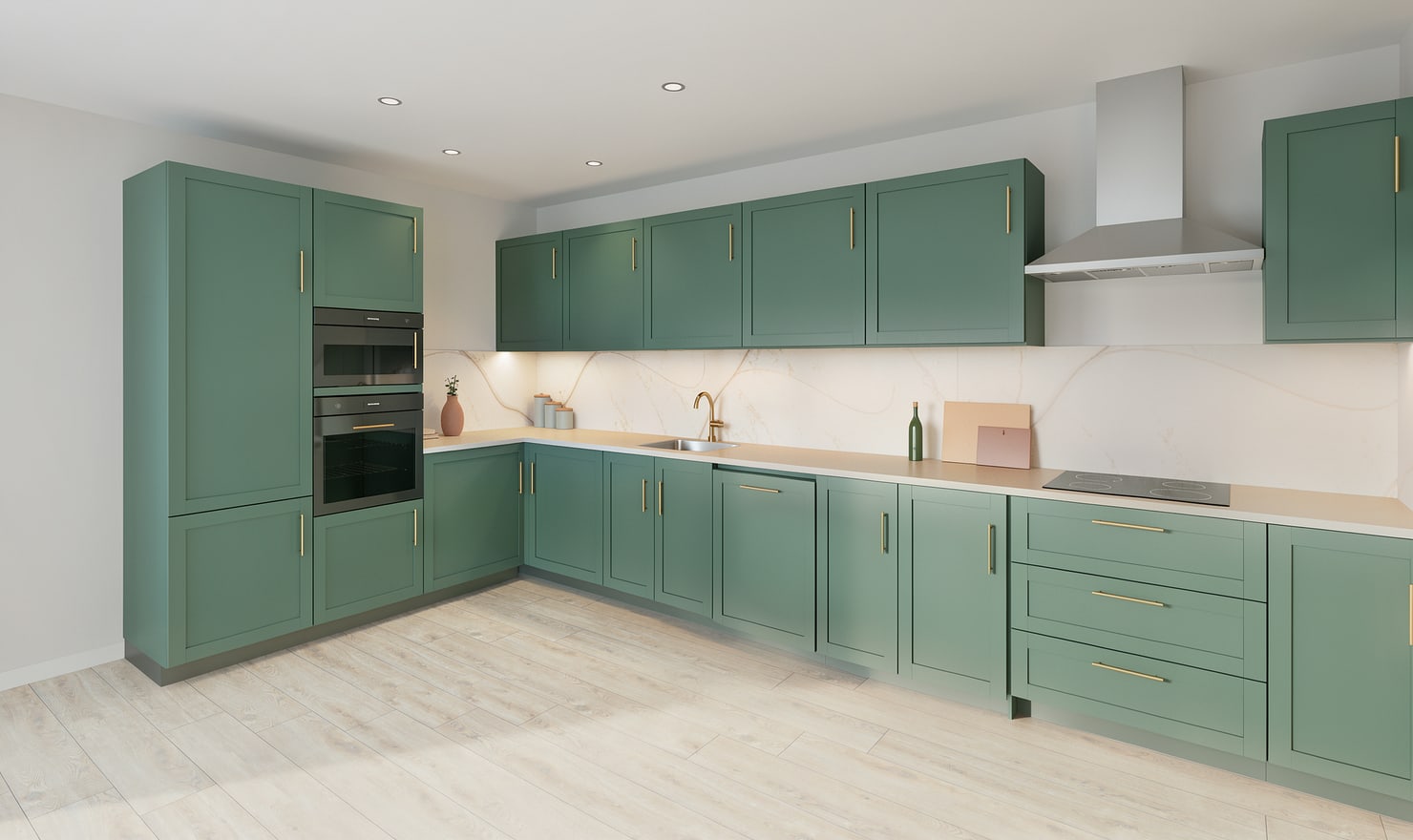
A galley has two parallel runs, and a camera placed along the aisle can hide most of one side. Use paired views to compare the facing cabinets and the relationship between the work zones.
Rendered Kitchform design. Photo Build drafts need separate review and measurement.
A practical workflow
01
Review the aisle in plan
Measure the gap between the runs and check the selected appliance opening instructions. A visually balanced render does not establish that two opposing doors can open together.
02
Use a view from each end
Save cameras that show both working sides. Include the ends of the worktops so the image explains the length of each run and any door or window beyond it.
03
Keep the material comparison controlled
Apply one palette, then compare both saved views. Check that a darker run does not visually dominate the aisle and that wall tile changes make sense on both sides.
Choose the right starting point
Manual kitchen planning and browser-made Free photos are free. Photo Build requires sign-in and an available allowance or paid credit. The upload dialog shows any active promotional offer and its end date.
During Photo Build week, a qualifying promotional build includes an editable draft and one High render of that kitchen. Drawing exports and additional High photos are paid separately. A paid credit makes one kitchen Premium; see current pack prices and allowances.
Questions about this workflow
Why does one galley view hide a cabinet run?
The narrow viewpoint can place a run close to the camera. Use a second saved view from the other end rather than relying on one picture.
What can I do next in Kitchform?
Open a kitchen project, review the layout and save a camera view. Compare the result with the plan and check the selected kitchen’s access before making a Premium High photo.