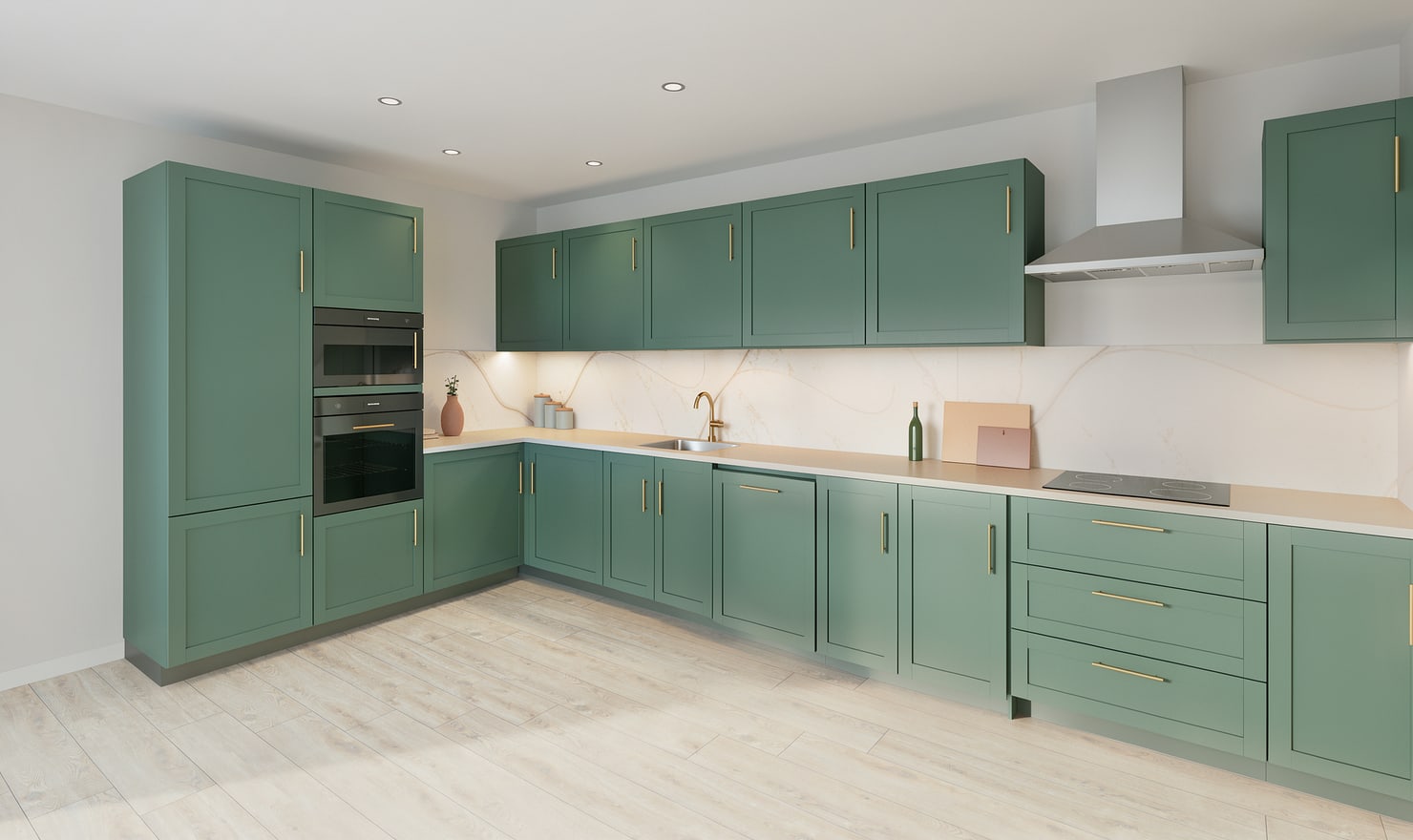
Small kitchens benefit from views that show the whole arrangement clearly. Combine an honest overview with a measured plan so a wide-angle picture does not make a tight aisle look larger than it is.
Rendered Kitchform design. Photo Build drafts need separate review and measurement.
A practical workflow
01
Review the plan first
Check the usable floor space, openings and appliance positions in plan. Remove objects that are only decorative placeholders if they distract from the decisions you need to make.
02
Use a clear overview camera
Place the camera outside the main cabinet run where possible. Include the floor between opposing units and keep tall cabinets visible so the viewer understands the room enclosure.
03
Compare a restrained palette
Try changes to the fronts and backsplash on the same layout. Review a second view if the first camera hides the sink, hob or door behind a tall cabinet.
Choose the right starting point
Manual kitchen planning and browser-made Free photos are free. Photo Build requires sign-in and an available allowance or paid credit. The upload dialog shows any active promotional offer and its end date.
During Photo Build week, a qualifying promotional build includes an editable draft and one High render of that kitchen. Drawing exports and additional High photos are paid separately. A paid credit makes one kitchen Premium; see current pack prices and allowances.
Questions about this workflow
Can a render prove a small kitchen has enough space?
No. Use dimensions, appliance specifications and the plan to verify space. The render helps communicate the arrangement.
What can I do next in Kitchform?
Open a kitchen project, review the layout and save a camera view. Compare the result with the plan and check the selected kitchen’s access before making a Premium High photo.