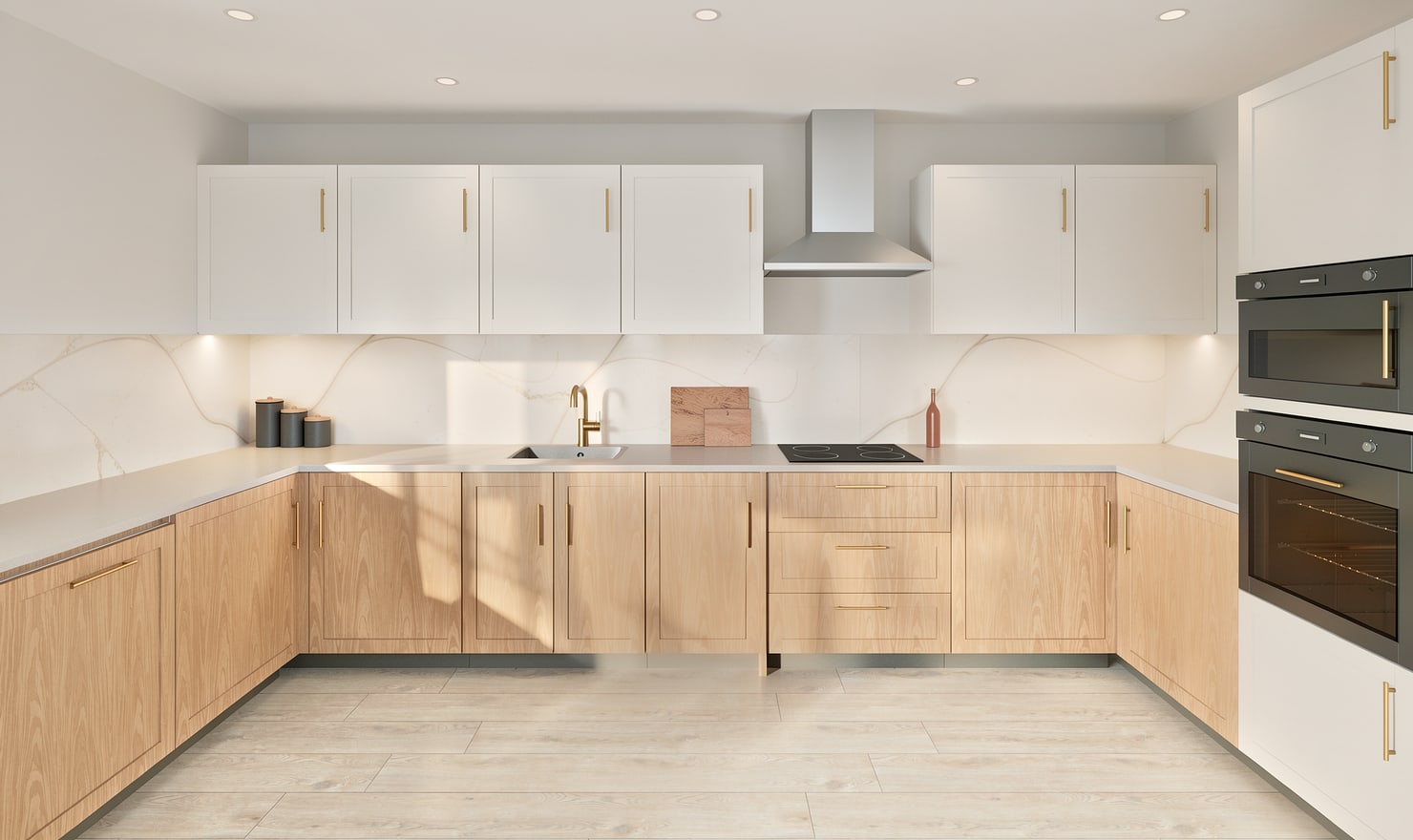
An L-shaped kitchen needs a view that explains both runs and the corner connection. A picture of only the longest wall can hide awkward transitions in worktops, wall units and appliance placement.
Rendered Kitchform design. Photo Build drafts need separate review and measurement.
A practical workflow
01
Review both cabinet runs
Check the lengths and the position of the corner unit. Inspect the worktop join and confirm that a suggested unit has not been duplicated where the two runs meet.
02
Place a diagonal overview
Choose a camera showing the corner, both runs and any window. Save a second angle if a tall cabinet blocks part of the short return.
03
Compare the finishes across the corner
Review the fronts, handles and tile as continuous decisions around the L. Inspect changes in cabinet height near the window or extractor in elevation.
Choose the right starting point
Manual kitchen planning and browser-made Free photos are free. Photo Build requires sign-in and an available allowance or paid credit. The upload dialog shows any active promotional offer and its end date.
During Photo Build week, a qualifying promotional build includes an editable draft and one High render of that kitchen. Drawing exports and additional High photos are paid separately. A paid credit makes one kitchen Premium; see current pack prices and allowances.
Questions about this workflow
Which camera is best for an L-shaped kitchen?
Start with a diagonal view showing both runs, then add a second view if a tall unit hides the short return.
What can I do next in Kitchform?
Open a kitchen project, review the layout and save a camera view. Compare the result with the plan and check the selected kitchen’s access before making a Premium High photo.