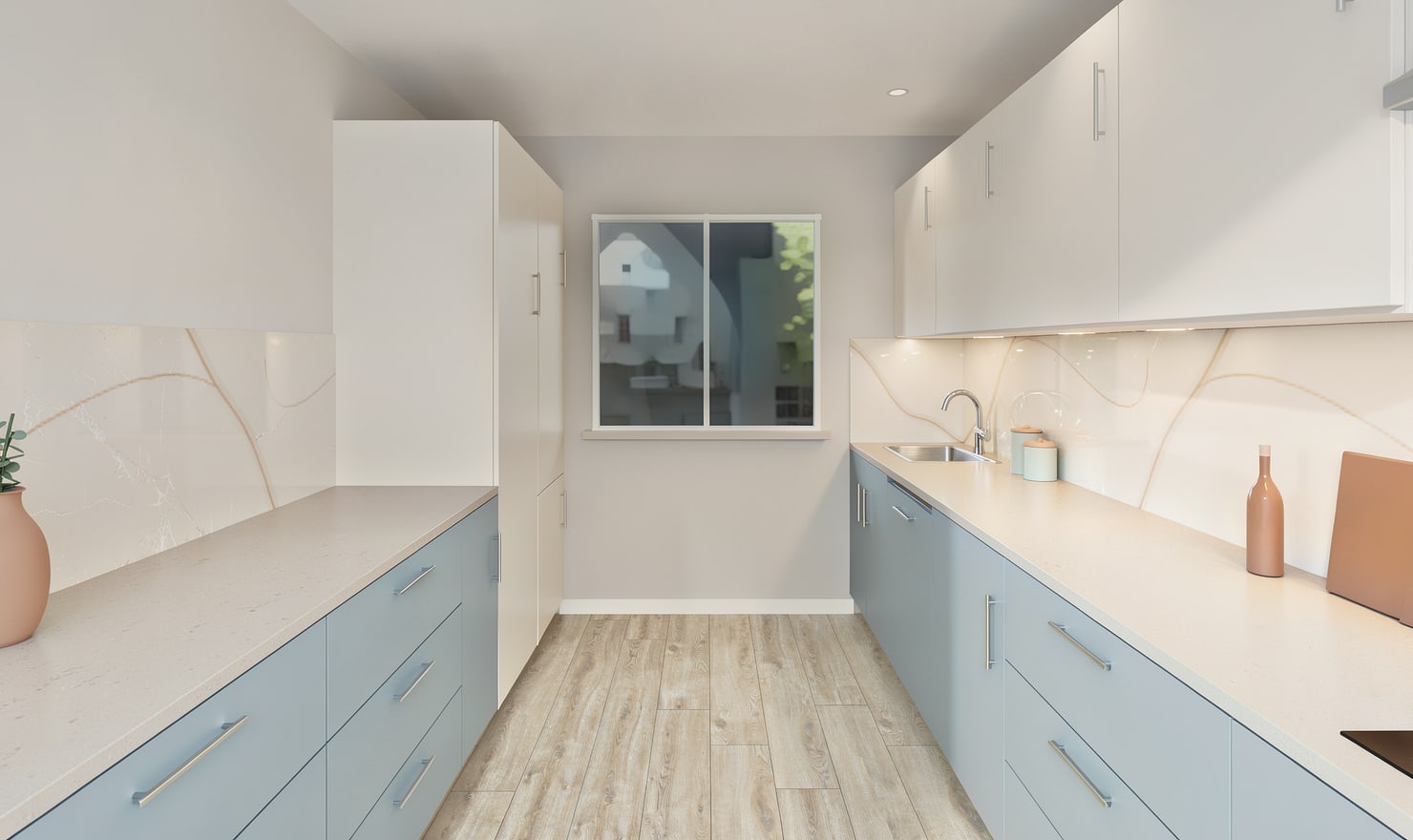
A U-shaped kitchen wraps around the viewer. Use the central opening for a clear overview, then check each side in elevation so the presentation does not hide one of the two corners.
Rendered Kitchform design. Photo Build drafts need separate review and measurement.
A practical workflow
01
Check the enclosed space
Review the distance between opposing runs in the plan. Confirm door and appliance opening requirements before deciding how enclosed the design should feel.
02
Frame the U from its opening
Place a camera that shows the back wall and enough of both returns. Avoid cutting off the side worktops if those surfaces are part of the material decision.
03
Review corners and tall units
Compare each corner in a second view or elevation. Look for wall units that appear continuous in a picture but require a different real corner arrangement.
Choose the right starting point
Manual kitchen planning and browser-made Free photos are free. Photo Build requires sign-in and an available allowance or paid credit. The upload dialog shows any active promotional offer and its end date.
During Photo Build week, a qualifying promotional build includes an editable draft and one High render of that kitchen. Drawing exports and additional High photos are paid separately. A paid credit makes one kitchen Premium; see current pack prices and allowances.
Questions about this workflow
Can one image show every U-shaped kitchen detail?
Usually you will need an overview plus additional views or elevations to explain both corners and any hidden appliance bank.
What can I do next in Kitchform?
Open a kitchen project, review the layout and save a camera view. Compare the result with the plan and check the selected kitchen’s access before making a Premium High photo.