Cabinet recognition is a starting point for review. Similar-looking fronts can conceal different functions, and corners or reflections can cause a unit to be missed or counted twice.
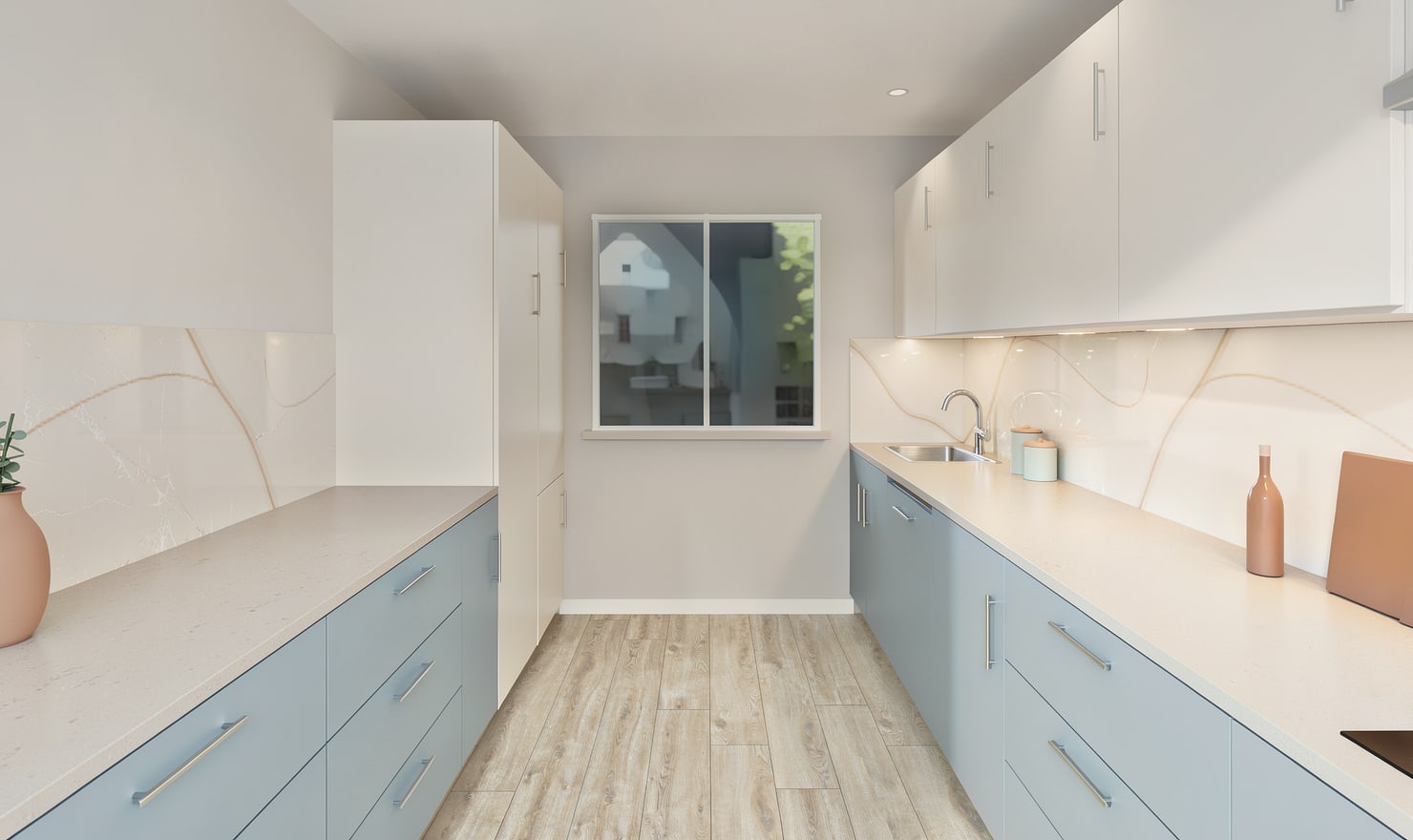
Rendered Kitchform design. Photo Build drafts need separate review and measurement.
A practical workflow
01
Compare each visible front
Work across the photo in a consistent direction. Check whether a suggested component is a hinged cabinet, drawer bank, appliance housing or open shelf. Do not infer hidden interiors solely from the front.
02
Check wall assignments
Use overlapping photos to confirm which units belong to each run. Review tall units, corner transitions and island components carefully because the same object can appear in more than one image.
03
Correct the component list
Untick false matches, add missed planning units and revise their dimensions before creating the draft. Keep uncertain items noted for a later site check instead of presenting them as confirmed products.
Choose the right starting point
Manual kitchen planning and browser-made Free photos are free. Photo Build requires sign-in and an available allowance or paid credit. The upload dialog shows any active promotional offer and its end date.
During Photo Build week, a qualifying promotional build includes an editable draft and one High render of that kitchen. Drawing exports and additional High photos are paid separately. A paid credit makes one kitchen Premium; see current pack prices and allowances.
Questions about this workflow
Does recognition identify the cabinet opening mechanism?
A photo may not show the real hardware. Review the planning mechanism and confirm the actual product with the cabinet supplier.
What can I do next in Kitchform?
Open Photo Build to check your account allowance, upload supported kitchen photos and review the suggested draft. Enter measured room dimensions before relying on the layout.