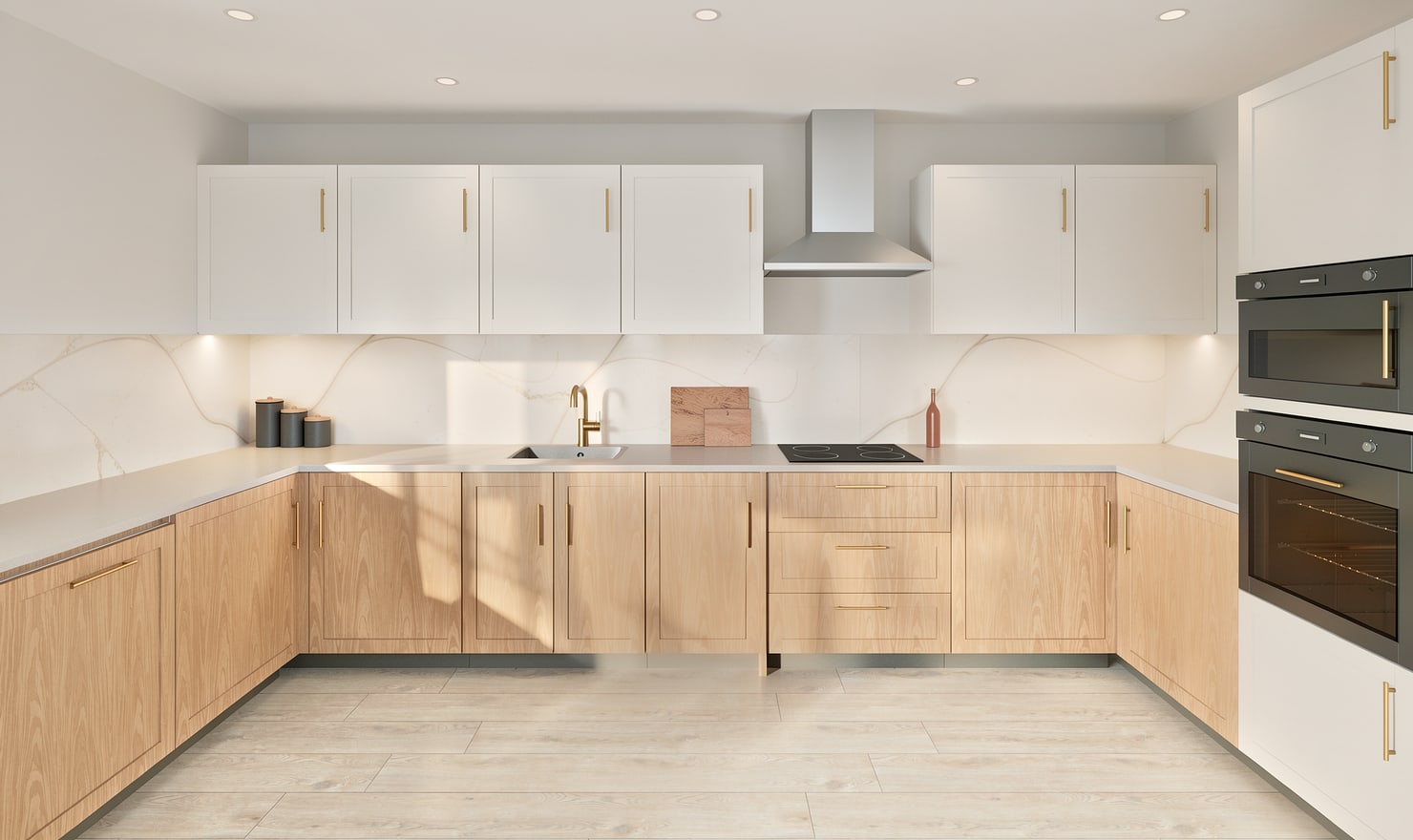
Render a kitchen island with its surrounding space
The island is part of the room layout, not just a central object. Show its relationship to the main run, seating side and access routes so the image explains how the kitchen will be used.
Rendered Kitchform design. Photo Build drafts need separate review and measurement.
A practical workflow
01
Establish its purpose
Decide whether the island provides preparation space, seating, storage or appliances. Review the cabinet depths and service requirements before refining the decorative finishes.
02
Show the exposed sides
Choose an overview that includes the island ends and the space around it. Add a reverse view to inspect the seating side and its relationship to the worktop overhang.
03
Review material transitions
Compare the island fronts with the perimeter cabinets. Inspect exposed panels and the worktop edge separately, then confirm the selected construction and support details with your supplier.
Choose the right starting point
Manual kitchen planning and browser-made Free photos are free. Photo Build requires sign-in and an available allowance or paid credit. The upload dialog shows any active promotional offer and its end date.
During Photo Build week, a qualifying promotional build includes an editable draft and one High render of that kitchen. Drawing exports and additional High photos are paid separately. A paid credit makes one kitchen Premium; see current pack prices and allowances.
Questions about this workflow
Does an island render verify a safe overhang?
No. The required support depends on the actual worktop material, thickness and construction. Obtain the supplier’s specification.
What can I do next in Kitchform?
Open a kitchen project, review the layout and save a camera view. Compare the result with the plan and check the selected kitchen’s access before making a Premium High photo.