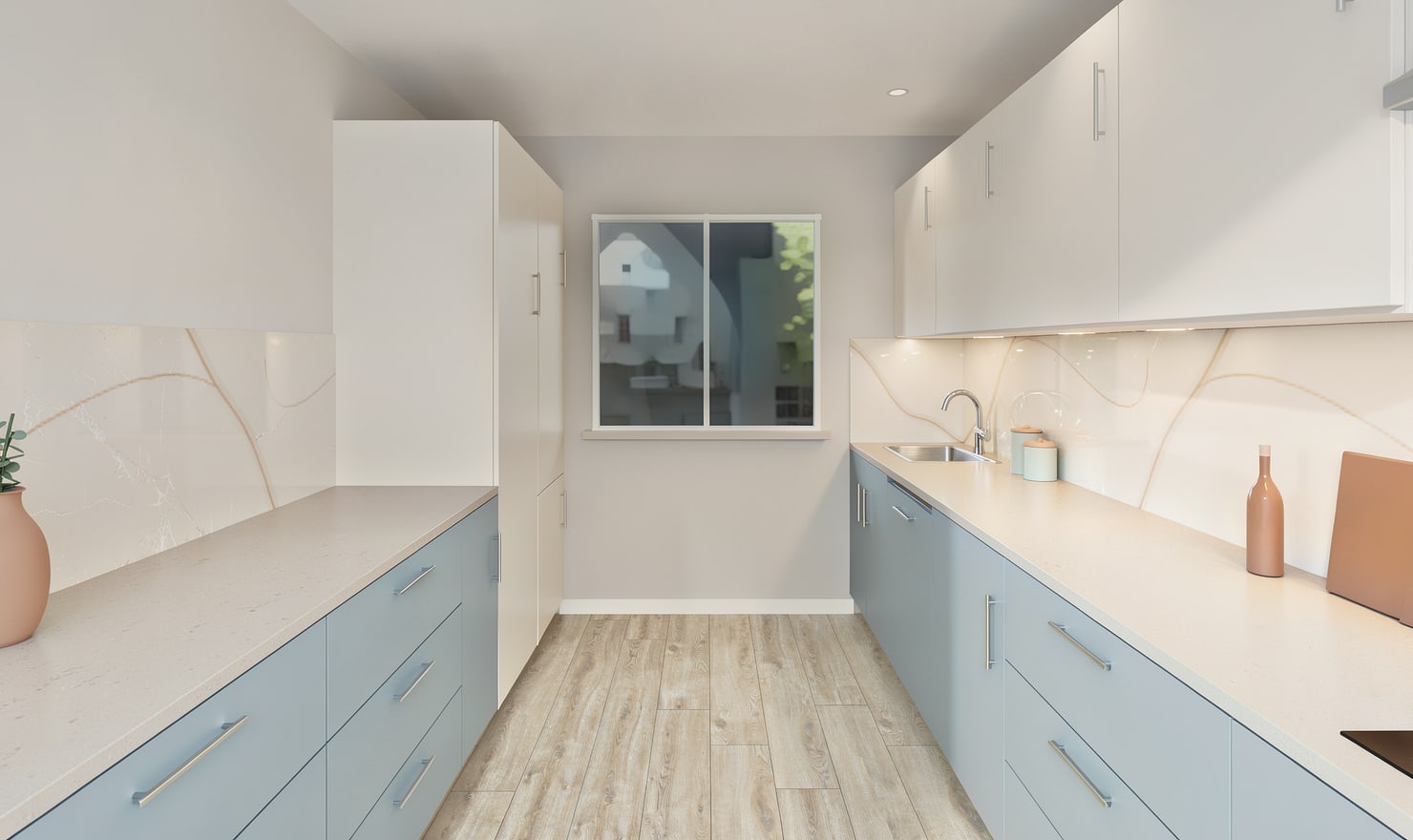
Light affects how cabinet finishes and worktops appear. Use a stable camera to compare the available lighting moods, then distinguish presentation preferences from the lighting design you will install.
Rendered Kitchform design. Photo Build drafts need separate review and measurement.
A practical workflow
01
Choose the decision you are testing
Use daylight to compare the overall material palette. Try an evening view when reviewing the atmosphere of the room. Keep the cabinets and camera unchanged between those pictures.
02
Inspect reflective surfaces
Look at the worktop, glass appliances and sink under each mood. Check whether reflections hide an edge or make a material appear brighter than expected in the room.
03
Specify the real lighting separately
Choose actual fixtures, locations and controls with the appropriate professional. A convincing rendered light balance does not establish electrical design, illumination levels or product performance.
Choose the right starting point
Manual kitchen planning and browser-made Free photos are free. Photo Build requires sign-in and an available allowance or paid credit. The upload dialog shows any active promotional offer and its end date.
During Photo Build week, a qualifying promotional build includes an editable draft and one High render of that kitchen. Drawing exports and additional High photos are paid separately. A paid credit makes one kitchen Premium; see current pack prices and allowances.
Questions about this workflow
Does a lighting render replace a lighting calculation?
No. Kitchform provides visual lighting moods, not a certified lighting or electrical calculation.
What can I do next in Kitchform?
Open a kitchen project, review the layout and save a camera view. Compare the result with the plan and check the selected kitchen’s access before making a Premium High photo.