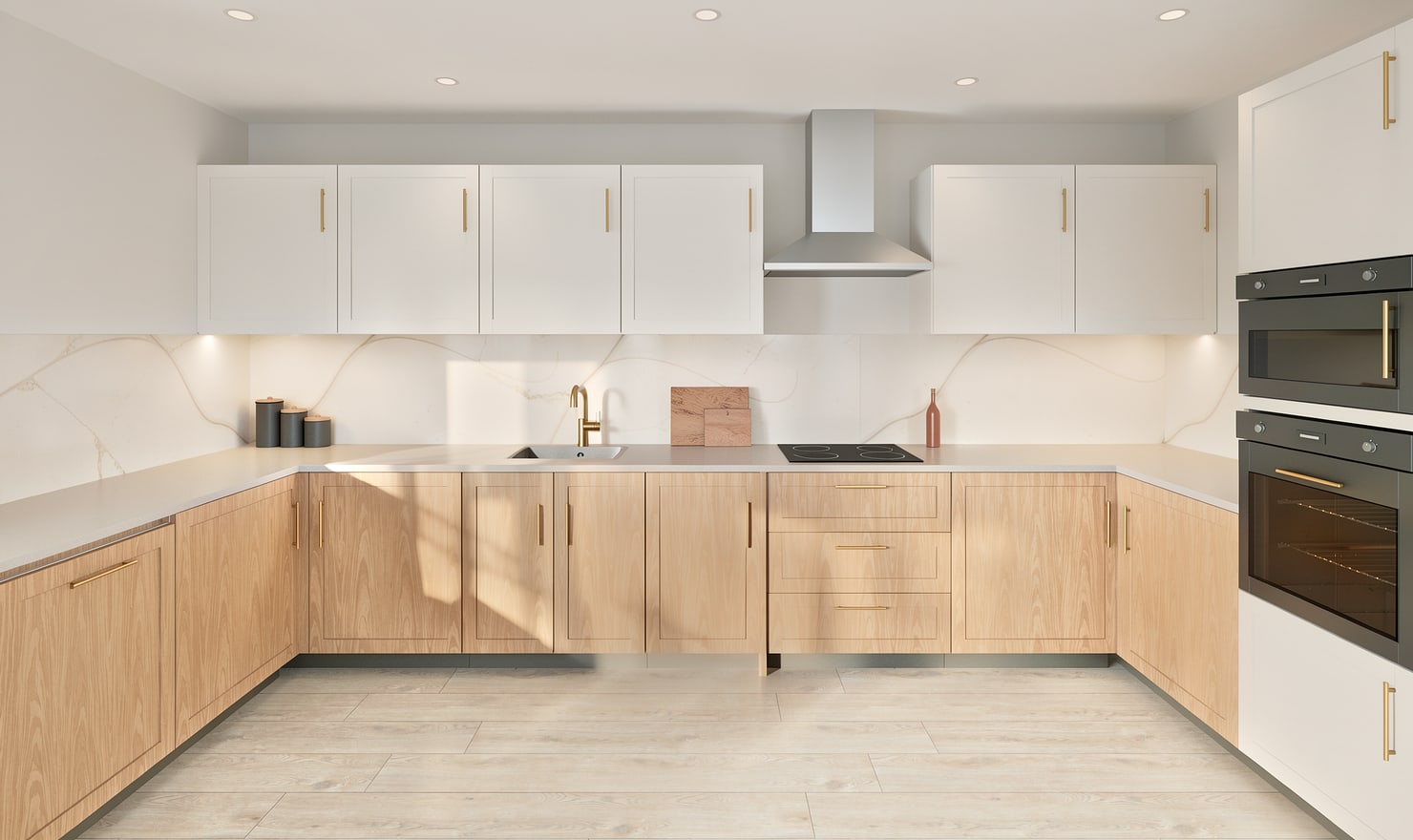
A useful kitchen render explains the design. Choose views that show cabinet relationships and worktop edges, then add a detail view when it helps resolve a material decision.
Rendered Kitchform design. Photo Build drafts need separate review and measurement.
A practical workflow
01
Start with an overview
Place a camera where a person could reasonably stand and show the main run with its return or island. Avoid framing the design so tightly that the room circulation disappears.
02
Add a decision-focused view
Use a second camera for the sink and window relationship, a tall appliance bank or a worktop detail. Keep important edges inside the frame so the picture can be checked against the plan.
03
Save cameras before rendering
Save placed cameras with the project and use them consistently for alternatives. Compare views alongside the plan rather than treating a dramatic wide angle as evidence of clearances.
Choose the right starting point
Manual kitchen planning and browser-made Free photos are free. Photo Build requires sign-in and an available allowance or paid credit. The upload dialog shows any active promotional offer and its end date.
During Photo Build week, a qualifying promotional build includes an editable draft and one High render of that kitchen. Drawing exports and additional High photos are paid separately. A paid credit makes one kitchen Premium; see current pack prices and allowances.
Questions about this workflow
Can I save my own render viewpoints?
Yes. Place and save cameras in the design, then select a saved camera when making a photo.
What can I do next in Kitchform?
Open a kitchen project, review the layout and save a camera view. Compare the result with the plan and check the selected kitchen’s access before making a Premium High photo.